


You probably already know how messy version tracking can get if you have worked on a project with files called final_v2, final_v3, and Final_FINAL. Without a clear structure, sharing code or design files back and forth can cause confusion, changes to be overwritten, and time to be squandered. Git version control was made to fix that precise problem. It helps people and teams keep track of changes and stay organized during a project.
What Is Git and Why Does It Matter?
Git version control is a way to keep track of changes to files across time. Git saves each update as a snapshot, so you do not have to overwrite old work or keep track of numerous copies. That means you can see who made modifications, when they were made, and what was changed.
That amount of visibility is necessary for any project with changing files, especially code.
One of Git’s best features is how well it works for others. More than one person can work on the same project at the same time without getting in each other’s way. If something goes wrong, you may go back to a full history of all your edits.
Branches give even more flexibility by letting developers try out new features or fixes without putting the main project at risk. GitHub’s 2025 Octoverse study also says that teams who use version control to make frequent commits and optimize their processes can ship code faster, manage risk better, and make fewer mistakes. This shows how important Git is to modern team productivity.
The Core Concepts of Git
Before using Git version control, it helps to know a few core terms. These concepts show up constantly, and once they click, everything else makes more sense.
- Repo (Repository): This is the place where you keep all of your project files. It has all of your files and a full history of all the changes that have been made to them. Think of it as the controlled space where Git keeps track of everything.
- Commit: A commit is a picture of your project at a certain time. Git keeps track of what changed each time you commit and adds a message summarizing the change. It is like a save point that you can go back to if you need to.
- Branch: A branch is a separate route of development. You can work on new features or fixes without changing the main version of the project. This makes it much safer to try new things.
- Merge: Merging is the process of taking modifications from one branch and putting them into another. When a feature is ready and has been tested, it can be added back to the main branch.
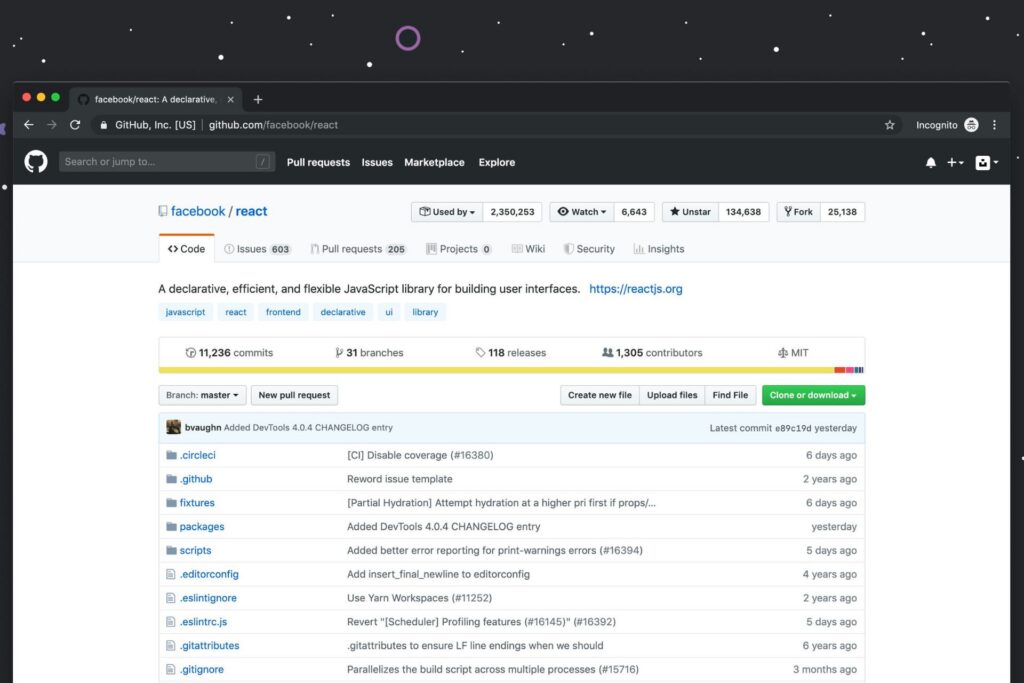
- Remote repository: A remote repository is an online version of your project that everyone can access and work on. GitHub is one of the services that hosts these repositories. It makes it possible for team members to work together by letting them push, pull, and review changes from anywhere.
How to Get Started With Git Version Control
Getting started with Git version control is more straightforward than it may seem. Once you install it and run a few basic commands, you will have a working system for tracking changes and managing your projects with confidence.
Step 1: The Git Version Control Download
You need to finish downloading Git version control before you can start keeping track of changes. A lot of professionals use Git. More than 90% of developers use it as their main version control system, according to polls. This makes it the standard in the industry. To begin, go to the official website at git-scm.com. There you will find links to download versions for Windows, macOS, and Linux.
Most systems make it easy to install the program. Windows users can launch the installer and follow the on-screen instructions. You may install Git on macOS using the official package or utilities like Homebrew. A lot of Linux distributions let you install software straight from the terminal using their package manager. You may also check that everything is working after installation by opening your terminal or command prompt and entering git –version.
Step 2: Initial Configuration
You will need to set up your identity when you install Git. This step makes sure that your contribution is properly attributed and can be traced by adding your name and email address to every commit.
Open your terminal or command prompt and enter the following commands:
- Git config –global user.name “Your Name”
- Git config –global user.email “youremail@example.com”
Using the –global flag applies these settings to all projects on your system. Once this is complete, Git is configured and ready to start tracking your changes.
3. A Basic Git Workflow and Choosing Your Tools
Once Git is installed and configured, it is time to use it. Most projects follow a simple workflow — initialize a repository, stage your changes and commit them. If you are starting a new project, run:
- git init.
This creates a new repository in your current folder. When you make changes to files, use:
- git add
This will stage them, and then:
- Git commit -m “Describe your changes here”
This command saves a snapshot of your work. That basic flow — init, add, commit — forms the foundation of Git version control.
It’s also important what tools you choose when you build your developer toolkit. A lot of developers use Chrome by default, but it’s a good idea to look into other options. Other tests of performance demonstrate that different browsers, like Microsoft Edge, often do better than Chrome when it comes to RAM efficiency.
This can make a big difference when running development environments and having a lot of tabs open. Using Git with the correct browser, code editor, and hosting service can make your workflow better.
Common Mistakes for Beginners (And How to Avoid Them)
Even if you know a little bit about Git version control, it’s possible to get into habits that will confuse you later. If you break these early, your workflow will be cleaner and more efficient.
Writing Commit Messages That Are Not Clear
Writing commit messages that are hard to understand is one of the most prevalent blunders. Words like “update” or “changes” do not indicate what was changed or why it matters. Messages that are clear and descriptive make it easier to keep track of progress, look back at history, and fix problems weeks later.
Working Directly on the Main Branch
When you’re working alone, it can be tempting to make all of your changes on the main branch. But this makes it more likely that you will add unstable code to your main version. When you create feature branches, new work stays separate until it has been tested and is ready to be combined with other work.
Fear of “Breaking” Things
A lot of novices are afraid to try new things because they do not want to make mistakes. Git is made to lower that risk. You can go back to an earlier version if anything does not work as planned, because every commit is like a snapshot.
Not Making Enough Commitments
If you wait too long between changes, your project’s history might become messy and hard to keep track of. Making smaller, more frequent commits makes it easy to see when changes were made and makes debugging much easier in the long term.
Building Confidence With Git Version Control
At first, Git version control may seem complicated, but once you get the hang of it, it becomes a necessary element of your work. Every step, from installing Git to making commits and dealing with branches, makes the development process more organized and dependable. Git can feel difficult at first, but with regular practice, it becomes second nature.


Leave a Comment