



In This Article
A great photo can make a design pop‚ but a vector makes the image flexible․ Graphic designers as well as freelance web designers need assets that are going to stay sharp․ Clients will often send JPGs that are blurry‚ PNGs that are too small or screenshots from the digital junk drawer․
That’s where Canva’s vector tools come in․ Designers can easily convert an image to a vector format with Canva’s SVG converter‚ Vectorify app or even the AI vector creator․ Although not a substitute for Illustrator in building a complex brand system‚ these are useful when you need a web graphic‚ icon‚ badge‚ sticker-style image or simple visual element quickly․
For freelancers‚ speed is always a factor․ If a client asks you for one quick fix to an image the day before launch‚ a Canva vector workflow doesn’t require you to start from scratch․
Why Vectorizing Photos is Useful for Web Designers
Vector graphics use math to create paths‚ so they can be scaled to any size․ There’s no loss of image quality and no blurriness‚ as there can be with JPGs or PNGs․ When used for logos‚ icons‚ basic illustrations‚ interface graphics or decorative elements‚ SVG files are especially useful for web designers‚ as they can make the image look sharp on phones‚ tablets‚ laptops and large monitors․
They also support accessibility efforts. According to a 2025 Web Almanac accessibility report‚ 50% of web images lack alt text or have inadequate alt text․ Since the alt text is separate from the vector file itself‚ this is a good reminder that every detail should be functional rather than decorative․ Every time you add a vector to a website‚ ask yourself how it will fit on the page and what you would want to write for its alt text․
The process is easier for designers working in Canva for social graphics for their clients, brand kits, pitch decks, or to create a quick mock-up for a new website. You can upload the image, clean it up, convert it to SVG and preview how it looks in a real design without leaving Canva.
The key is knowing when to use Canva․ It’s excellent for simple images that have shapes with well-defined edges․ Some types of images‚ like product silhouettes‚ line-art portraits‚ bold/fat icons or photos of simple objects‚ convert well․ In contrast‚ detailed portraits‚ busy street scenes or photos of complex landscapes produce messy SVGs with too many shapes․
How to Use Canva to Turn a Photo Into a Vector
Decide what the final vector’s purpose will be. For example, a website icon will look vastly different from a landing page with a giant sticker-style image․ Logo recreation has to be a little cleaner than a decorative social graphic, but a little planning saves you from digital design slop. Follow these steps to convert your photo easily:

1. Choose a High Contrast Photo
Use a picture with sharp quality because vector tools work on shapes and edges․ Canva gets more information from photos with strong differences between color and light․ Use a picture with one theme‚ a strong outline and a minimal background․
If the image has a complex background‚ crop first․ If the subject has a brightness or contrast similar to the background‚ the background can be adjusted․ Make sure the object stands out from the background so Canva can trace it․ Product outlines‚ icons and simple illustrations tend to be most successful․ Highly detailed real-world photographs often look better as edited raster images․
2. Upload the Image to Canva
Open Canva and create a new design․ Use any size canvas‚ but choose one as close to your final use as possible for best results․ Choices include the size of a logo variant for a small brand mark‚ the size of a presentation slide for a graphic in a pitch deck or the size of a website banner for a hero image․
To upload an image‚ use the Uploads panel‚ or drag the image into the workspace/canvas‚ and move and resize it so you can see the edges of the image․
Canva’s online SVG converter allows users to upload an image‚ do some quick changes and download the design as an SVG․ An SVG’s scalability means that designers can resize images without losing quality or detail․
3. Clean Up The Photo Before Converting
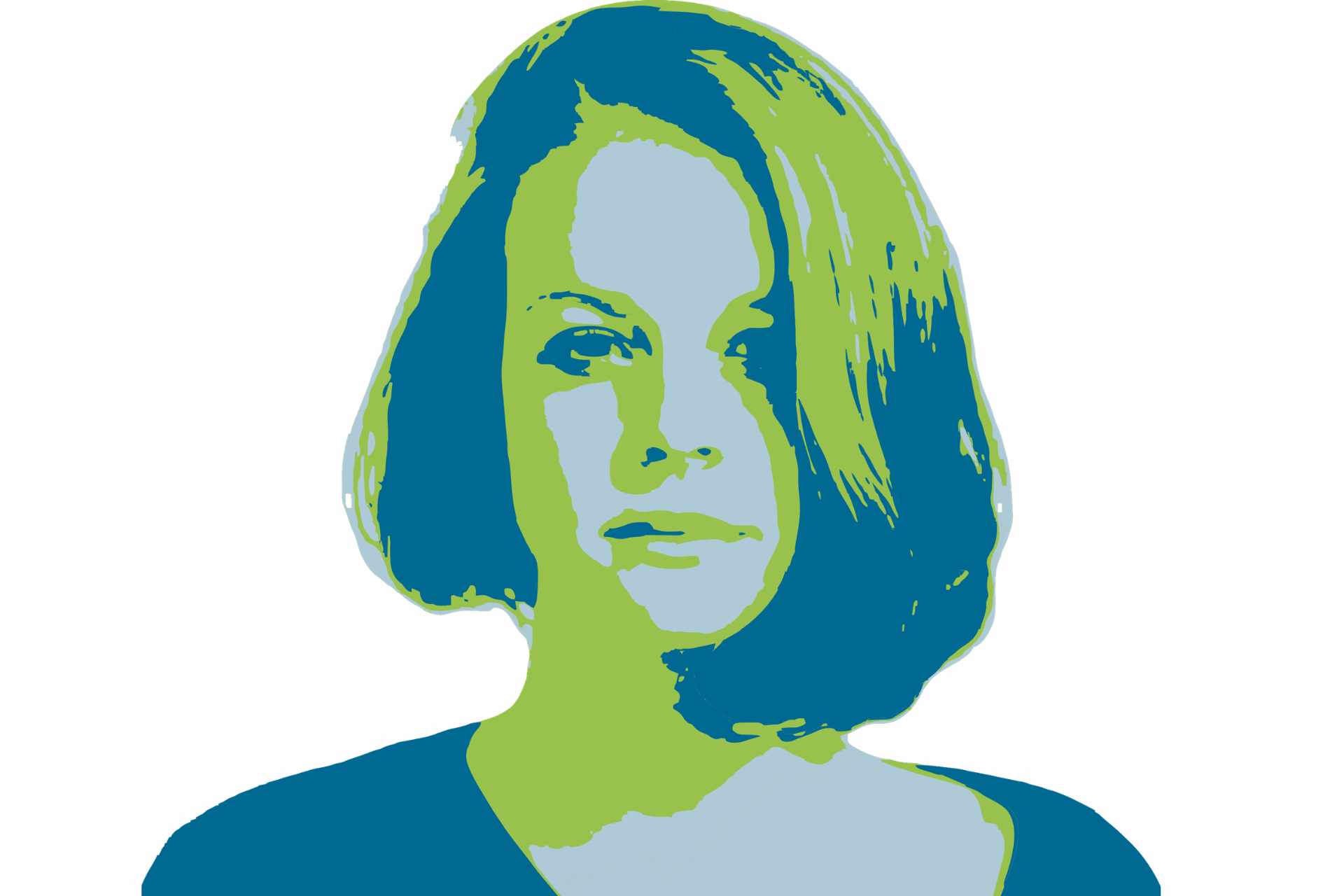
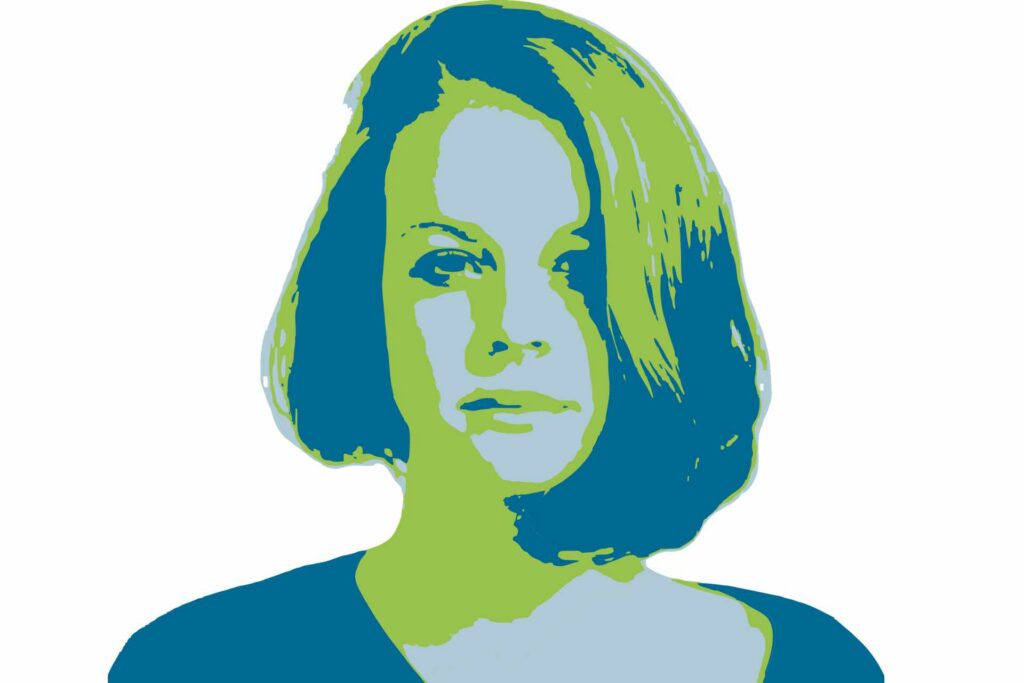
Complete the cleanup step or a fast photo conversion will produce a rushed-looking vector․ Crop out extra space‚ remove unnecessary background objects and simplify the composition as much as possible․ For our sample image, we used Canva’s Background Remover tool to make the background plain white.
With a Canva Pro account‚ you have access to the Background Remover or the Magic Eraser tool․ Otherwise‚ crop‚ adjust the contrast or add shapes‚ stickers‚ icons‚ charts and illustrations to your image․
Cleanup is also crucial for web designers․ You may not mind the odd stray shape in your image when it is displayed at its full width as an SVG․ However‚ such artifacts will be glaringly obvious at smaller sizes‚ such as when used for a favicon‚ menu icon or mobile header image․ The image needed to be a bit sharper so we also used the photo enhance tool to sharpen things up quickly.
4. Use the SVG Download Option from Canva
After cleaning your image‚ press the Share button‚ press Download and select the SVG file type․ Depending on your account type and file extension‚ you may need a Pro subscription to download SVG files․
After you download it‚ make sure to click and check the SVG‚ looking at its edges‚ its colors and its PDF at several sizes before sending it to a client or uploading to a website․ A vector is a great idea‚ but the design still needs to be readable․
Other similar tools from Canva have also been discussed on Designerly․ The article discusses the Canva Image Upscaler and the ways it analyzes shapes, edges and textures to generate additional detail. Upscaler can be useful if the image is of low resolution and must first be improved before conversion or reconstruction․
5. Try Vectorify for More Control
Vectorify is also available in the Apps section of Canva․ Open the Canva design‚ select Apps‚ and search for Vectorify․ You can either upload an image or use one that’s already in your design․ Vectorify is the perfect tool where you want to do a simple conversion of an image to a vector inside the editor and creating vector-style images from crude images․
As with all automatic vectorization tools, the input matters. Images with high contrast and high edges to detail ratio yield the best results․ Shadows‚ texture‚ hair‚ glare or superimposed images in the original picture tend to generate less than ideal vectors and may require additional cleanup․
6. Refine the Vector Inside Your Design
Now that you’ve converted the image to vector‚ the next step is to use the vector as a base and change its color palette to match the company․ Remove any odd shapes or background bits․ Try light and dark background options․ If placed next to text‚ use appropriate margins to create visual balance․ For client work‚ make a duplicate page before beginning large-scale changes‚ so you can easily revert to the previous state if needed․
Also test the vector where it’ll live․ If it’ll be in a website header‚ view it on desktop and mobile․ If it’s a landing page illustration‚ make sure it doesn’t compete with the page headline․ For an icon‚ try resizing it to see if the idea is still obvious․
7. Export the Right Files for the Client
When you’re happy with the final design‚ download the final SVG copy․ This is a scalable version․ Alternatively‚ you might want to provide transparent PNGs for clients who need a drag-and-drop file for emails‚ documents or social media posts․
When Canva’s Vector Tools Work Best
Canva’s vector editor is ideal for rudimentary design work․ It can be used to design product outlines‚ social media graphics‚ web iconography‚ badges‚ stickers‚ simple flat designs and basic logo edits․ It is not suitable for detailed illustrations‚ complex portraits or recreating logos that require precise paths․
The magic isn’t that Canva does everything․ It’s that it can do enough for a great many everyday projects․ For graphic designers and freelance web designers‚ that means smoother workflow‚ cleaner assets‚ and fewer delays if a client sends imperfect files․
Using Canva vector tools, you can convert any photo into a Design file in a matter of minutes․ Clean photo‚ simplify photo‚ double check and export the correct file types. Your designs will look sharper‚ your web layouts will be more refined‚ and your clients will be thrilled with the final result.

Leave a Comment