



In This Article
Artificial intelligence (AI) is switching things up in the creative world fast, and Adobe Photoshop is now at the center of it. What was once a manual, skill-driven design tool is now a platform powered by intelligent features that can automate tasks and enhance precision. As more creators integrate AI into their everyday work, one question remains. That is, can Photoshop’s AI tools genuinely make workflows smoother without sacrificing creative control?
What Is Photoshop AI?
Photoshop AI is a shorthand term for the growing suite of AI-powered features within Adobe Photoshop, many of which are built on Adobe Firefly and other machine learning models. Instead of manually handling every edit, designers can now rely on trained algorithms that recognize patterns in images, understand prompts and generate new content on command.
The purpose of this technology is to automate repetitive, time-consuming tasks. AI in Photoshop can automate tasks like object removal, background replacement and precise selections that used to take dozens of clicks. It also boosts creativity, helping users quickly explore concepts, variations and layouts in minutes. This streamlining makes high-quality design more accessible to non-experts.
Across industries, 64% of companies already utilize AI to enhance productivity, including for creative teams. As these tools mature, AI features will become increasingly integrated into everyday workflows, experiencing significant growth in the design world.
Key Photoshop AI Features
Photoshop AI has several tools to simplify some of the most time-consuming tasks. Each feature serves a distinct purpose, from eliminating manual steps to enabling creatives to experiment more freely. Below are how these capabilities fit into real-world design workflows.
Generative Fill
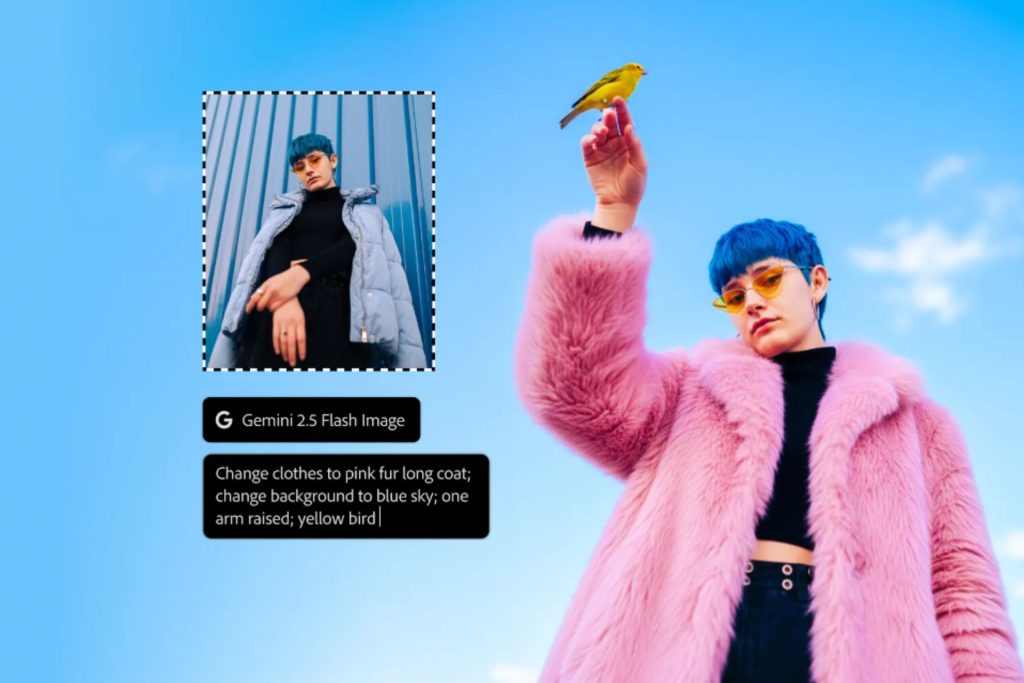
Generative Fill allows users to add, remove or extend elements in an image with a simple text prompt. Instead of manually cloning, masking or compositing, the AI feature analyzes the existing scene and generates realistic content that works seamlessly with lighting, perspective and texture. It is especially useful for tasks like expanding a background, removing distractions or mocking up creative variations in seconds.
Generative Upscale
Generative Upscale is a tool that increases an image’s resolution while preserving important visual details. Rather than stretching pixels, it intelligently analyzes patterns, edges and textures to rebuild a sharper, clearer version of the original image. This feature makes it especially useful for designers who need to repurpose small or low-quality images for larger formats, social media graphics or print assets without introducing blur or distortion.
Neural Filters
Neural Filters use machine learning to apply complex edits in only a few clicks, giving users the ability to make targeted adjustments that once required advanced retouching skills. These filters can smooth skin, change facial expressions, adjust lighting, colorize black and white photos or even transfer artistic styles.
Because the AI interprets the image’s structure before applying changes, the results tend to look more natural and cohesive than those of traditional filter-based edits. Neural filters are helpful for photographers, marketers and designers who want fast, high-quality refinements in a matter of seconds.
Advanced Object Selection
The Object Selection Tool now leverages artificial intelligence to identify subjects and complex shapes with a level of precision that is difficult to achieve by hand. Instead of tracing edges or refining masks from scratch, the tool analyzes image structure to detect objects, hair, textures and fine details automatically.
With a click or light brush stroke, designers can isolate elements for compositing, color adjustments or background removal. This makes the tool especially valuable for high-volume workflows where accuracy and speed are equally important, such as product photography or client revisions.
Content-Aware Fill
Content-Aware Fill builds on Photoshop’s classic tool by making object removal and scene reconstruction far more accurate and intuitive. Instead of relying solely on nearby pixels, the AI evaluates the larger context of the image to generate seamless replacements.
This results in cleaner fills with fewer artifacts, reducing the need for additional manual patching or cloning. It is particularly useful when you need to remove distractions, repair damaged areas or quickly rework image compositions while maintaining a natural look.
Match Font
Match Font works exactly as it sounds. It uses AI to analyze the typography within an image and identify similar or exact font matches from Adobe Fonts and local libraries. This feature becomes useful because it saves time by eliminating the need to guess which typeface was used and by avoiding the need to scroll through endless options. Instead, the tool examines character shapes, spacing and proportions to deliver close matches instantly.
This AI feature comes in handy when recreating brand assets, aligning new designs with existing materials or reverse-engineering text treatments from inspiration images. It streamlines the process of maintaining visual consistency and speeds up decision-making when working with type.
How to Use AI in Photoshop
AI in Photoshop was designed to simplify the work that designers already do, not replace their creative process. Instead of digging through menus or constantly using complex manual techniques, many tasks now start with simple prompts or a single click. Here are a few ways to put these tools to work.
1. Changing an Outfit With Generative Fill
Suppose a designer has a good portrait, but the subject’s shirt feels off-brand for the campaign. With Generative Fill, users can use a selection tool to roughly outline the shirt area, then type a prompt, such as “a dark jacket over a white T-shirt,” into the Generative Fill box.
Photoshop analyzes the lighting, fabric folds and perspective, then generates several realistic options to choose from. In a few seconds, they’ve completely restyled the outfit without reshooting or manually compositing new clothing.
2. Creating a Dramatic Mood With Sky Replacement
Sometimes a photo has the right composition but the wrong atmosphere. For instance, it could be a landscape captured on a dull, overcast day. With Photoshop’s AI-powered Sky Replacement, photographers can transform the mood in seconds.
By choosing from preset skies like “Blue Skies,” “Sunset,” or “Spectacular,” Photoshop will automatically apply a new look while adjusting the lighting and color of the entire scene to match. As a result, it appears cohesive and feels as though it was shot under ideal conditions, thereby preventing the photographer from having to return to the location and reshoot a scene.
3. Developing a Product Mock-up With Generate Background

When preparing marketing assets, a photo of a product may be shot against a plain background. With Photoshop’s Generate Background feature, the designer can lift the product off its backdrop and place it into an entirely new scene using a text prompt.
For example, after removing the background, they can type something like “on a bathroom counter next to a neatly folded towel,” and the AI will build a realistic environment around a beauty product. This provides an instant, market-ready lifestyle image without requiring a physical set, props, or studio lighting.
What Are the Benefits and Drawbacks of Using AI in Photoshop?
Photoshop’s AI tools can be valuable when used with intention. They may speed up production, but they also change who can create, how teams collaborate and where budgets go. Keep the following benefits and watch-outs in mind.
Benefits:
- Massive time savings: According to Adobe research, 62% of creative professionals who have used generative AI report that it has reduced the time spent on tasks by 20%, enabling them to move faster on deadlines and revisions.
- Keeping up with demand: With 69% believing it will help them keep up with the demand for online content, these tools are becoming essential for staying competitive.
- Democratization of design: AI features help designers to achieve more with better results. Around 70% of executives say it will help them do more without the need for more designers, making proficiency in these tools a core skill for modern creative work.
- Enhanced creativity and skill growth: Since AI frees designers to focus on higher-level decisions, experimentation and concept development, it can ultimately elevate the quality of the final work. Nearly two-thirds of employers plan to hire those with specific AI expertise, so learning how to use these tools also gives creatives a career advantage.
Considerations and potential drawbacks:
- Ethical use and authenticity: Overreliance on AI-generated content can raise questions about originality, transparency and fair use of training data, so it is important to be thoughtful about how and when to use these tools.
- Avoiding a generic look: If everyone leans on the same presets and prompts, visuals can start to feel interchangeable. Adding a clear human touch, brand voice and customer refinements keeps work distinct and memorable.
- Cost of access: Leveraging Photoshop’s AI tools requires an Adobe Creative Cloud subscription, which can be a large ongoing expense for freelancers and small agencies evaluating ROI.
Is Photoshop’s AI Worth Using?
Photoshop’s AI features offer a simple way to streamline everyday tasks, enhance creativity and help teams keep pace with growing content demands. While these tools are not a substitute for design, they can remove barriers and make high-quality work more accessible. With the right balance of human creativity and AI-driven assistance, Photoshop becomes an even more powerful asset in modern workflows.
Leave a Comment