




In This Article
Canva.com has plenty of tutorials explaining how to perfect the basics of design using its platform. The Canva Hacks and Tips series on Designerly looks at more advanced techniques and shortcuts that might save you time. The more you design, the faster you’ll get and the more upscale your images will look. The goal is for your solopreneur operation to have graphics that look as professional as one of the big New York advertising agencies. You can achieve this with practice and dedication.
For this month’s Canva series article, we decided to focus the out of bound effect, or a pop out three-dimensional image.
What Exactly Is a Portrait Pop with a 3D Effect?
The video above goes through many of the steps you’ll need to achieve this effect. Because Canva’s pro accounts are around $12.99 per month (depending on your user number and if you pay annually), we highly recommend investing in the Pro version of the account. That said, you can certainly use their free features to achieve something similar. For the purposes of our tutorials, we use a Pro level account.
A portrait pop uses letters or background images and layers to take a photo and make it pop out as though someone is crawling through the elements. Rather than limiting the image only inside letters, as we showed in our transparent letters tutorial, you are going to make the image climb out of the letters, with part of it inside and part outside.
You can use this technique for an ad that stands out on social media, your website header or your logo. It also works nicely on posters and other print promotional materials.
How to Achieve the Portrait Pop Out Design in Canva
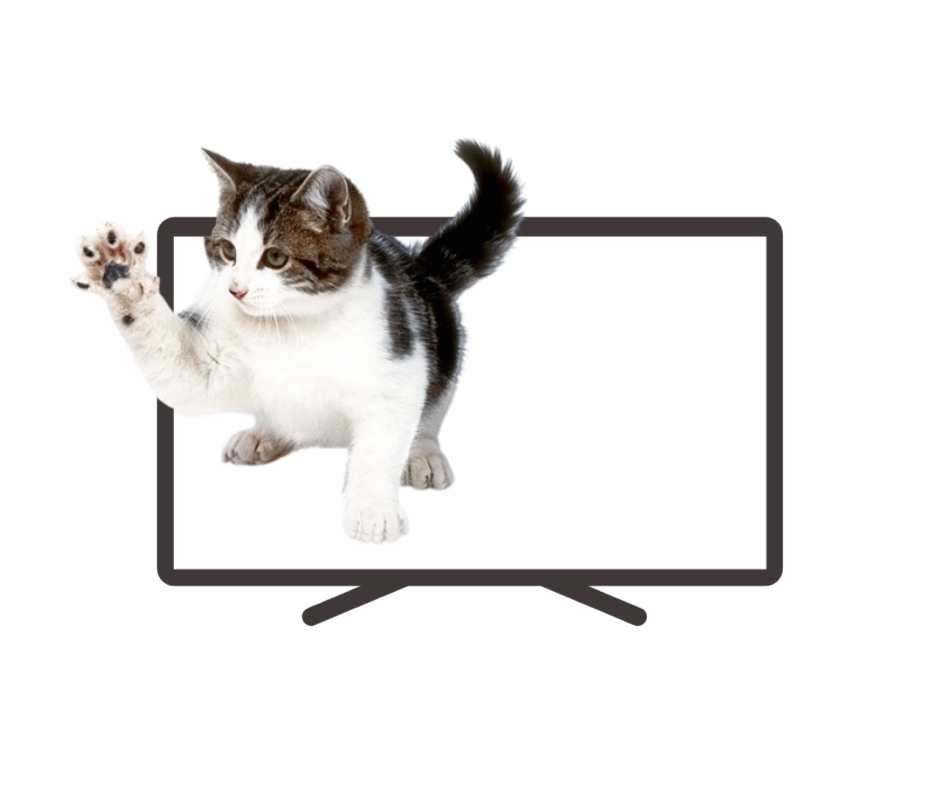
Although there are multiple steps to achieving a pop out, the design is simple enough for most beginners to achieve. As your skills level up, you can add complexity by understanding the basics of the design concept. You can use several methods. My favorite is to use the frame numbers or create frames. Here are the steps to take to create pop out images.
Step 1: Choose Your Frame
Your first step is to go to Canva and open the size document you want to work with. If you plan to use the graphic for a Facebook Ad, for example, go to Social Media, Facebook and choose a blank canvas in the appropriate color.
Now, you are going to select a frame for the image to pop out of. You can choose letters, numbers, a computer screen or anything else that makes sense to you. Go to Elements and type in “frame.”
Step 2: Outline Your Text
If you aren’t making or using ready-made frames, try this method. Highlight your text or letters and click on Effects and then choose Outline. Make the text white. Some creators change the background color to still clearly see the text during this phase but you can also highlight it for the same effect and you won’t have to change it back later. So, click on Outline/White and then adjust the thickness of the outline. A five seems to work fairly well and doesn’t change the appearance of the characters much. Play around with the slider until you achieve the look you desire.
Step 3: Choose the Out of Bound Image
While still in elements, select the image you want to pop out of your frame. You may choose something high action like a sports figure throwing a ball or something more ordinary like a young woman sitting on a wall. Look for a photo that has some body part extended over or out for the best effect.
Step 4: Drag Image Into Frame
If you are familiar with Canva already and know how to drag images until they settle into the frame background, you can skip this section. For newbies, you will click to select the pop image, hold and drag the image until it settles into the background of the frame. It will jolt into place and become part of the framed element.
Step 5: Resize
Double click the image and adjust it so that the sections you want are overlapping the frame. For now, it might not look three dimensional and a bit broken, but we’re going to fix that. You can grab the round circle in any corner and drag the image to resize. Click on the blank part of the canvas to exit out of the editing mode. Now, lock your frame. As you are resizing the second image explained below, it will keep popping into the frame should you forget to lock it.
Step 6: Add Image Again
Now, you are going to add the image again from your uploads or the same photo you selected in Canva earlier. The easiest way I found to line the second image perfectly over the first is to make the image slightly transparent, which you can do by clicking on the transparency icon in the bar that appears when you click on your image. It is located between the Flip and Animate buttons.
Now, resize and move the image until it fits perfectly over the one inside your frame, extending out beyond the frame. You may need to play with it for a bit to get it aligned just so. Once you do, increase the transparency slider so the image layered on top comes back into sharp focus.
Step 7: Remove the Background
You will need a paid Canva account to use this feature. If you do not have one, you can save your image by copying and pasting it on a new page and saving that page only as a PNG. You can then take the photo to another site, like LunaPic or a program like Paint. Make the background transparent, save and upload to Canva. Now, you’ll have to readjust your sizing but you can still use the technique with a free account.
Step 8: Finishing Touches
You can now unlock your frame and select both images by clicking, holding the Shift key and clicking on the second element. Once all are selected, choose Group. You can now move your pop image around the screen. You may want to add a background or other elements to your finished product.
Canva Makes Design Easier
Canva is a lot of fun and they are always adding new features. Check back next month, when we’ll have a tutorial for how to record a talking head with your presentation video – all within the Canva platform.
Leave a Comment