

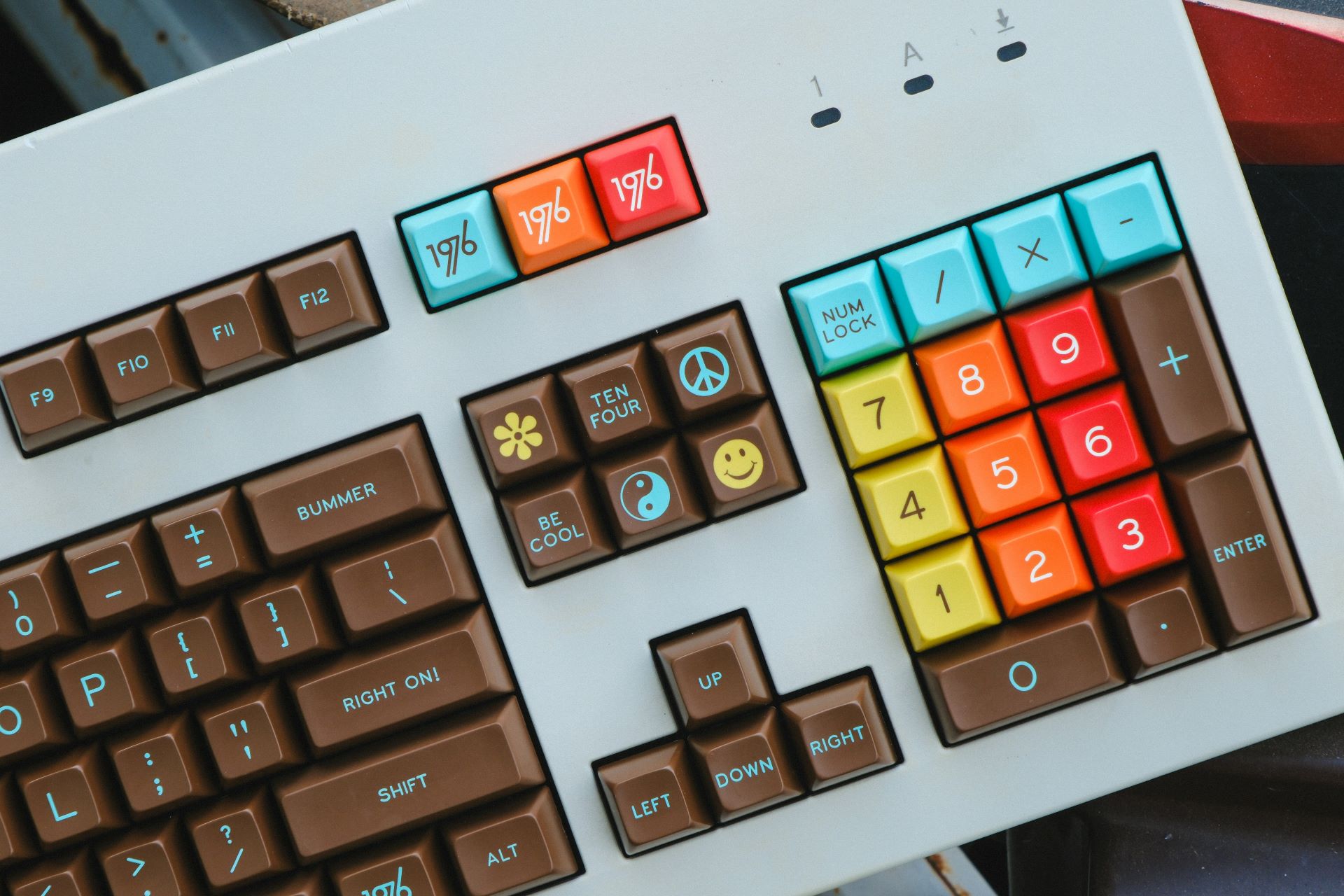

Everyone who has used a computer knows the keys on their keyboard. They may even know some basic shortcuts, like copy and paste. Even more advanced typists know there is another secret way to unlock even more possibilities with every nook and cranny — Windows Alt codes. These are like advanced keyboard shortcuts with more intricate inputs, and they open up far more possibilities for what you can access on a standard American English keyboard. Discover what they are, if you don’t know already, and what you can do with them.
What Are Windows Alt Codes?
A Windows Alt code is a keyboard input exclusive to Windows machines that lets you type special characters. These include letters with accents, symbols, and some emojis.
It is not possible for keyboards to contain everything you would want to type. Otherwise, they would be too massive and cumbersome to navigate. Additionally, many keyboards only feature what is necessary for the language of the country in which they are sold. It doesn’t make sense for keys to feature letters with accents if they are not used at all in the written language.
Alt codes give users the flexibility to use these special characters without making their typing more complicated. While it may take some time to memorize the ones you need the most, typing them out will become second nature.
How Do You Use Windows Alt Codes?
They are called alt codes for a reason. For standard keyboard shortcuts, you typically press the control key (Ctrl) in addition to a letter. For alt codes, you press the Alt key and a series of numbers on a 10-key numerical pad (numpad). Unless you set up customizations, you must use a numpad to do these inputs. It will not work with the line of numbers above your main keys.
If you want to use them on a laptop that may not feature a numpad, it may vary depending on your machine. However, some Windows laptops allow users to access special characters without using Alt codes by pressing the Windows key with the colon/semicolon button. This should open a menu that lets you access emojis and special characters.
What Windows Alt Codes Should I Memorize?
The alt codes you need to memorize will depend on what you do for work. If you are a Spanish translator, you may need letters with accents and tildes. You could set up your keyboard to have an alternative Spanish keyboard layout, so you don’t have to use Alt codes. Or, you can learn the few characters you need without going through that trouble.
You may be a lawyer, and you type a lot of special characters, like a copyright or restricted symbol. What if you teach math and need characters for calculus-level students? These would be incredibly useful, rather than repeatedly copying and pasting from a web browser.
You may also not know what Windows Alt code would be most useful for you to memorize, simply because you don’t know them all. It’s time to explore what they have to offer, starting with some of the most widely used options, sourced from Pennsylvania State University.
Letters With Accents
| Accent | A | E | I | O | U | Y |
| GraveCapital | À0192 | È0200 | Ì0204 | Ò0210 | Ù0217 | — |
| Grave Lower Case | à0224 | è0232 | ì0236 | ò0242 | ù0249 | — |
| AcuteCapital | Á0193 | É0201 | Í0205 | Ó0211 | Ú0218 | Ý0221 |
| Acute Lower Case | á0225 | é0233 | í0237 | ó0243 | ú0250 | ý0253 |
| CircumflexCapital | Â0194 | Ê0202 | Î0206 | Ô0212 | Û0219 | — |
| Circumflex Lower Case | â0226 | ê0234 | î0238 | ô0244 | û0251 | — |
| TildeCapital | Ã0195 | — | Ñ0209 | Õ0213 | — | — |
| Tilde Lower Case | ã0227 | — | ñ0241 | õ0245 | — | — |
| UmlautCapital | Ä0196 | Ë0203 | Ï0207 | Ö0214 | Ü0220 | Ÿ0159 |
| Umlaut Lower Case | ä0228 | ë0235 | ï0239 | ö0246 | ü0252 | ÿ0255 |
Other Foreign Characters
| Symbol | Name | Code Number |
| ¡ | Upside-down exclamation mark | 0161 |
| ¿ | Upside-down question mark | 0191 |
| Ç, ç | French C cedille (caps/lowercase) | 01990231 |
| Œ,œ | O-E ligature (caps/lowercase) | 01400156 |
| ß | German Sharp/Double S | 0223 |
| Ø,ø | Nordic O slash (caps/lowercase) | 02160248 |
| Å,å | Nordic A ring (caps/lowercase), Angstrom sign | 01970229 |
| Æ, æ | A-E ligature (caps/lowercase) | 01980230 |
| Þ, þ | Icelandic/Old English Thorn (caps/lowercase) | 02220254 |
| Ð, ð | Icelandic/Old English Eth (caps/lowercase) | 02080240 |
| « » | Spanish/French angle quote marks | 01710187 |
| ‹ › | Spanish/French angle single quote marks | 01390155 |
| Š š | Czech S hachek (S Caron)(caps/lowercase) | 01380154 |
| Ž ž | Czech Z hachek (Z Caron)(caps/lowercase) | 01420158 |
| ¢ | Cent sign | 0162 |
| £ | British Pound | 0163 |
| € | Euro currency | 0128 |
| ¥ | Japanese Yen | 0165 |
| ƒ | Dutch Florin | 0131 |
Math Symbols
| Symbol | Name | Code Number |
| ÷ | Division sign | 0247 |
| ° | Degree symbol | 0176 |
| ¬ | Not symbol | 0172 |
| ± | Plus/minus | 0177 |
| µ | Micro | 0181 |
| ‰ | Per Mille | 0137 |
| ¼ | Fraction 1/4 | 0188 |
| ½ | Fraction 1/2 | 0189 |
| ¾ | Fraction 3/4 | 0190 |
Frequent Symbols
| Symbol | Name | Code Number |
| © | Copyright symbol | 0169 |
| ® | Registered symbol | 0174 |
| ™ | Trademark | 0153 |
| • | List Dot | 0149 |
| § | Section Symbol | 0167 |
| † | Dagger | 0134 |
| ‡ | Double Dagger | 0135 |
| – | en-dash | 0150 |
| — | em-dash | 0151 |
| ¶ | Paragraph Symbol (Pilcrow) | 0182 |
Faces and Icons
| Symbol | Name | Code Number |
| ☺ | Smiley face | 1 |
| ♥ | Heart | 3 |
| ♦ | Diamond | 4 |
| ♣ | Clubs | 5 |
| ♠ | Spade | 6 |
| ♪ | Eighth note | 13 |
| ♫ | Paired eighth notes | 14 |
| ☼ | Sun | 15 |
| ♂ | Masculine symbol | 11 |
| ♀ | Feminine symbol | 12 |
Fun Fact About Alt Codes
You can also type any letter that is already on your keyboard, including punctuation and numbers, with Alt codes. For example, a capital A is Alt+128, and a 3 is Alt+51. If, for some reason, one of your keys goes out, at least you have another option!
Typing Smarter
If you never knew about the possibilities of Windows alt codes, you do now. While this is not an exhaustive list of every code imaginable, you have access to the most popular ones that can make any typing venture easier. With character maps, alt codes, and shortcuts, you have plenty of ways to personalize your typing to your skills, abilities, and preferences.

Leave a Comment