




In This Article
One of the most significant advantages of Canva is the ability to complete complex graphic design tasks without in-depth design knowledge. While trained designers will be able to do much more with the tool than the average person, small business owners without a full-time staff can use elements like Magic Grab to create ads for social media, blog posts and visuals that are stunning and represent their brands well.
What Is Canva’s Magic Grab?
Canva continues to release new tools to make its software more useful. One handy tool is Magic Grab, which uses artificial intelligence to let you select, move, resize, or delete specific parts of photos as if they were separate layers. The Magic Grab tool is intended to allow parts of images to be tucked out of the way or repositioned for text.
https://www.youtube.com/watch?v=IlPBiPXX27Y&t=12s
For example, if you want to use a photo and move the subject to another location while keeping the background, you can. You will need Canva’s Pro plan to try Magic Grab, which starts at $120 per year or $15 per month.
Ways to Use the Tool
Last month, we talked about creating pop-out images with Canva. You could easily use a photo, separate the subject from the background and move it around, creating a three-dimensional look. It works particularly well for images of sports figures or people in action. Picture a balance dancer leaping across the page.
A few things you can do:
- Reposition the subject
- Replace the background
- Resize an object
- Make multiple layers to isolate elements
- Relayer just the object with something over or behind it
Learning to use Magic Grab is simple. The magic lies in playing with the concept to create the exact result you desire.
Steps to Use the Magic Grab Tool
The whole process starts with an image. Ideally, you’ll use something unique that speaks about your persona or brand. You can use Canva’s stock images, too, but for the most control and robust branding, upload something new. Here are the steps to work with Magic Grab.
1. Edit the Image
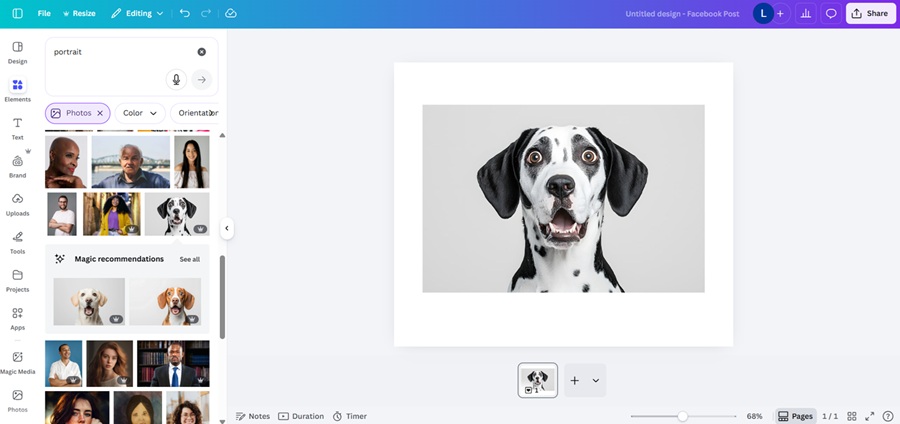
For this tutorial, we chose a simple stock image from Canva. A noncommercial image focuses on the process rather than a specific brand. You’ll want to do the opposite for promotional purposes and put the focus on your image. Click on your image and then click “Edit” just above the image.
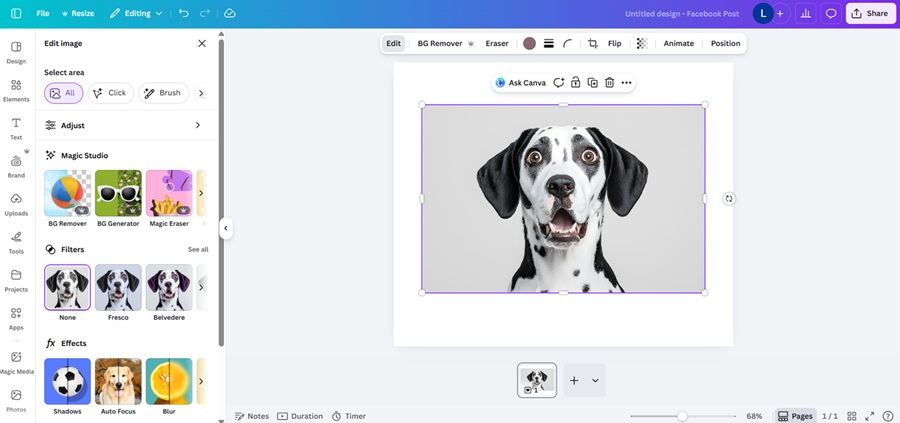
2. Grab an Element
The side panel will open with the options pictured above. You may need to scroll to the right to see “Magic Grab.” It is an icon featuring a yellow and blue hot air balloon. Click on it.
A box will pop up in the upper-left corner of your screen. It will say “Select Objects to Grab” and offer three options — brush, click, or foreground. If you have a single object, such as in the photo above, that you’d like to isolate, choose Foreground. For multiple subjects, where you to choose two or more, use the click tool. If you wish to select only a small area, such as the dog’s ear, use the brush and adjust the size to paint the area you want to grab.
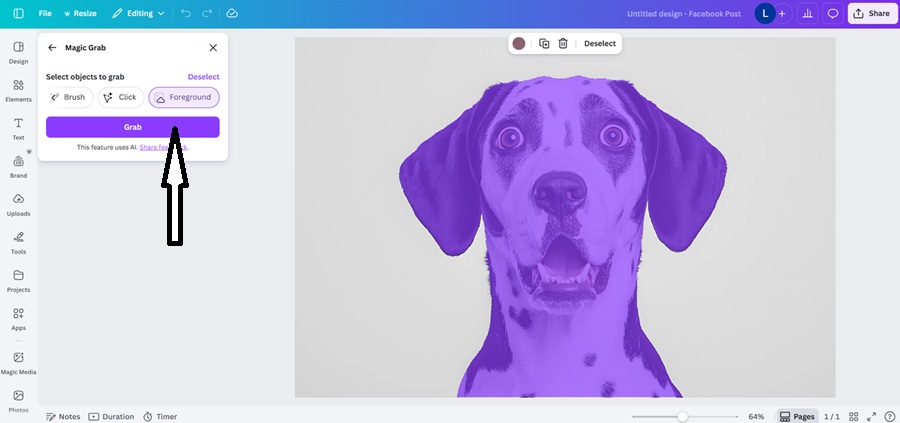
3. Click on “Grab”
Once you’re satisfied with your selection, click the purple “Grab” button. The program will separate the highlighted items from the background. If you aren’t happy with the results, Ctrl + Z undoes your efforts, and you can begin again.
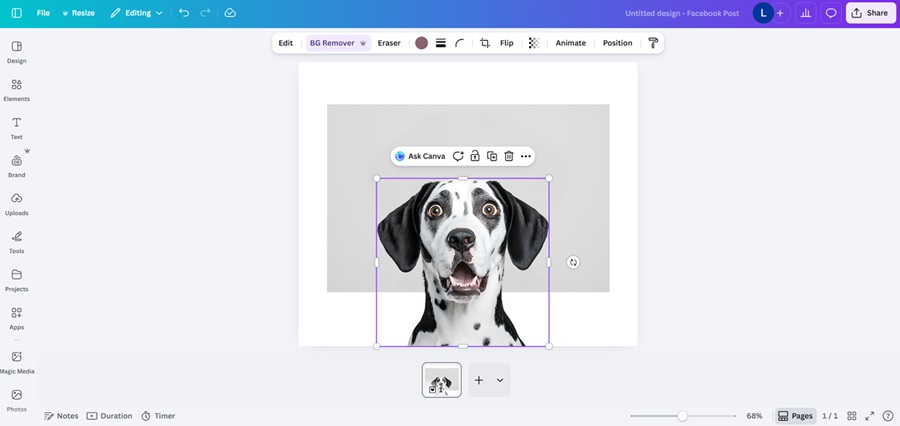
4. Work With Your Newly Isolated Subject
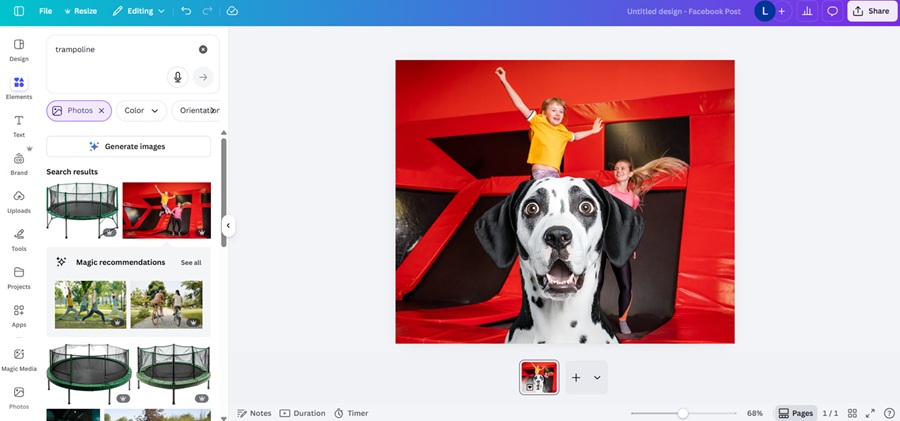
Notice how the dog is no longer attached to the background in the image above? You can see the element border around it where I’ve clicked on the separated object. I then moved the dog down below the original background.
From here, you can duplicate the dog, change the image background and make slight alignment adjustments.
Where the Fun Happens
Once you’ve isolated what you want, this is where the fun happens, and you can let your design creativity shine. Notice that I’m trying a trampoline look in the background, making it seem like the dog is up close to the camera and jumping with the kids. The look might work well for a pet daycare ad or a place that rents blow-ups.
You could add a vet’s office, front yard, or nearly anything you can think of. You could also place the dog in front of a TV screen with an advertisement mocked up on the screen.
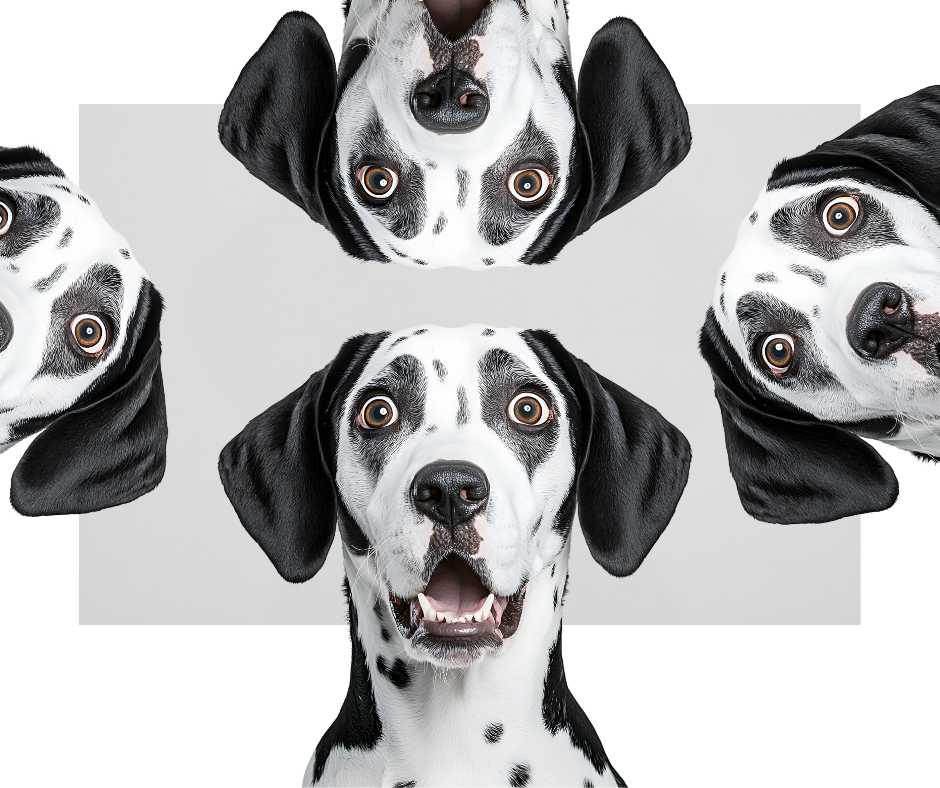
The tool works so well because the possibilities are endless. I could also make a bunch of cute dogs and add them around the screen.
Some Additional Tips for Using This Canva Feature
A few things that may help the tool be even more helpful to you.
- You can use it multiple times.
- You can hold down the Shift key as you click to select more than one object on click.
- Use the Undo button to reverse any action.
- The subjects should be sharp. Otherwise, they may not separate or have fuzzy edges.
Why You Should Try a New Canva Hack
Even if you’re a pro at the things you use on Canva for your daily work, learning new features gives you an edge over people in your industry. You never know when a client might say, “I really love this image of our manager, but I wish I could put him in front of our new location instead of this old one.”
With Canva’s Magic Grab tool, you can easily fulfill that wish and many others. Give it a try and see what unique looks you can create to make your brand stand out.


Leave a Comment